

Morrisville, Vermont, USA • Since 1976
Concept2 — The Gold Standard in Commercial Cardio & Rowing
Founded in 1976 by Olympic rowers Dick and Peter Dreissigacker, Concept2 is the undisputed benchmark for Olympic rowing, elite CrossFit, and commercial training centers worldwide. Officially distributed and supported by Attivo International in Vietnam.

Core Commercial Ergometer Lineup

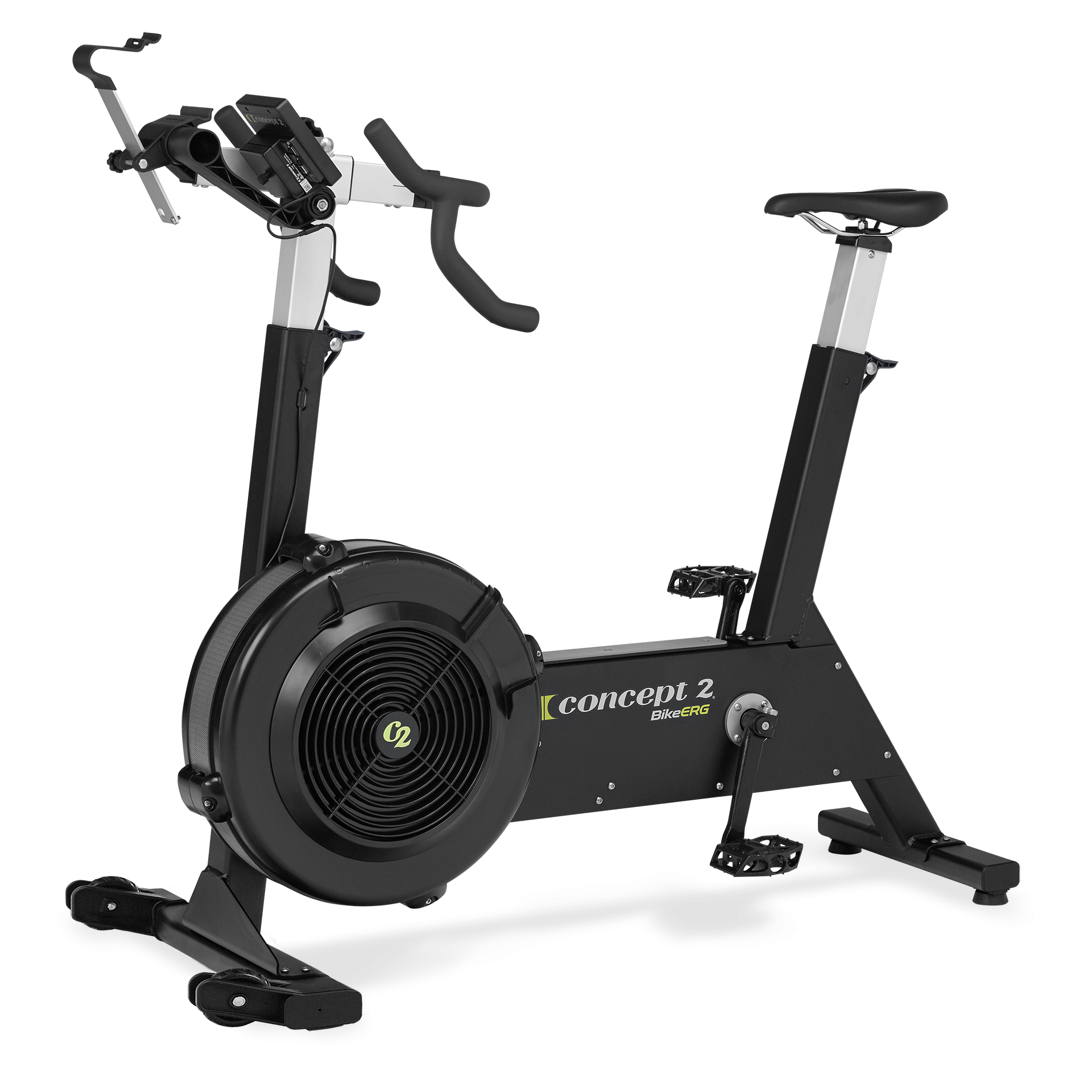

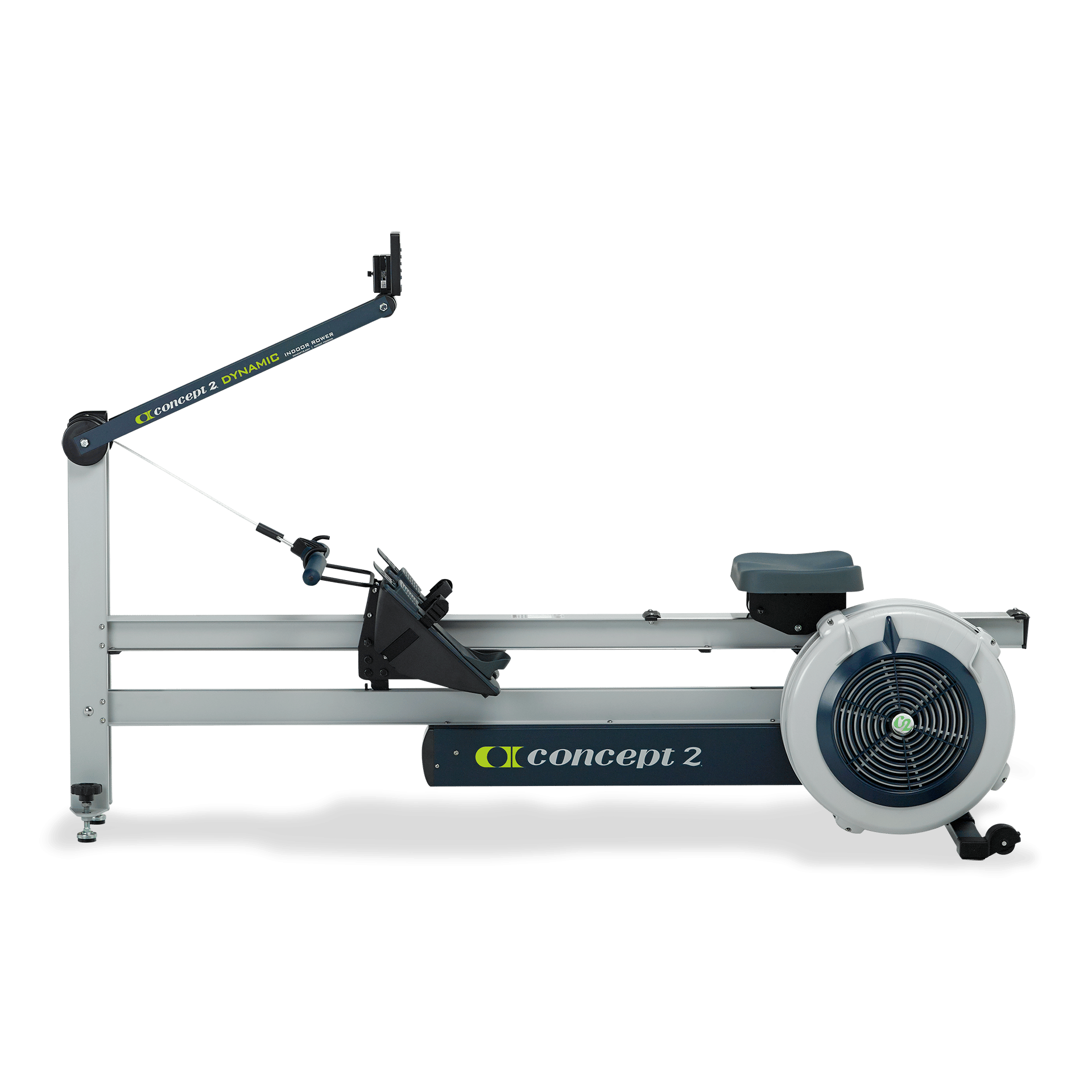
The PM5 Performance Monitor — Precision Data on Every Stroke
What separates Concept2 from every other cardio machine is the unmatched comparability and accuracy of the PM5 monitor. Every meter, split, and watt is calibrated to deliver verified, repeatable athletic metrics.
Wireless Connectivity
Bluetooth & ANT+ sync with ErgData, Garmin, and Apple Watch.
Olympic Verified
Official testing benchmark for World Rowing and CrossFit Games.
Why Commercial Facilities Choose Concept2
-
check_circle
Built to Last a Lifetime: Robust steel framing, nickel-plated chain, and maintenance-friendly design engineered for 24/7 commercial duty. -
check_circle
Zero Motor Failure: Smooth air flywheel resistance with no electric motor to burn out, dramatically reducing operating costs. -
check_circle
Compact Storage: RowErg easily separates into two parts in 10 seconds for effortless roll-away storage.
Concept2 Commercial Products & Accessories
All 45 commercial-grade ergometers, performance monitors and genuine accessories distributed in Vietnam.

Polar Verity Heart Rate Sensor
SKU: 2644
Details
arrow_forward

Polar H10 Heart Rate Transmitter With Belt
SKU: 2629
Details
arrow_forward


SkiErg Polar Heart Rate Monitoring Kit
SKU: 2743
Details
arrow_forward


Dynamic Indoor Rower Heart Rate Monitoring Kit with Polar Equipment
SKU: 2863
Details
arrow_forward

Dynamic Heart Rate Receiver Kit
SKU: 2758
Details
arrow_forward

Indoor Rower Heart Rate Monitoring Kit with Polar Equipment—PM2, PM3, PM4
SKU: 1747
Details
arrow_forward

Indoor Rower Heart Rate Receiver for Polar Equipment—PM2, PM3, PM4
SKU: 1862
Details
arrow_forward



USB B to USB C Cable for Use with PM3, PM4 and PM5 Monitor
SKU: 7050
Details
arrow_forward


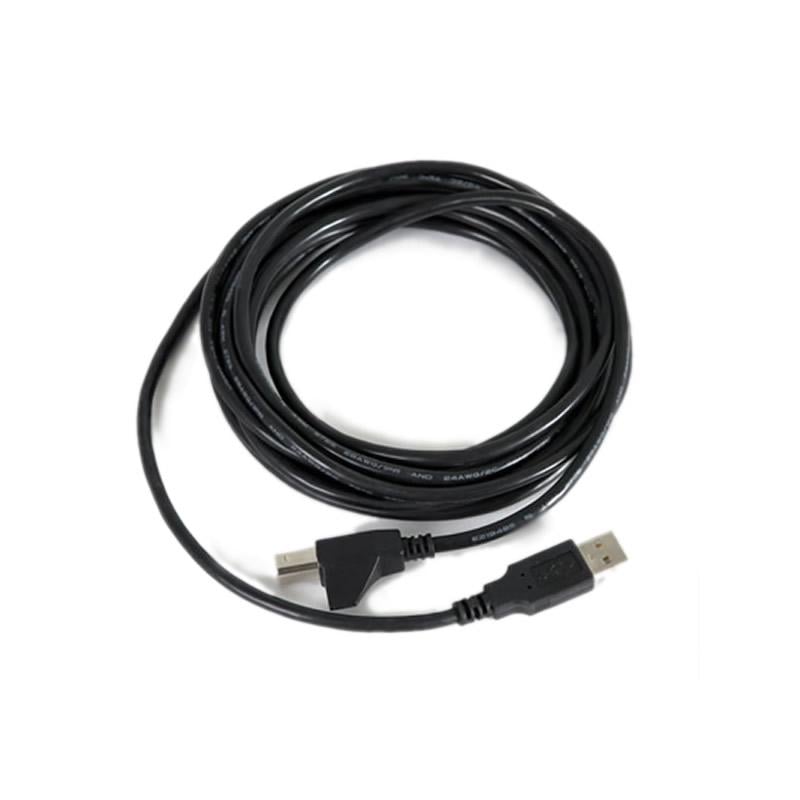


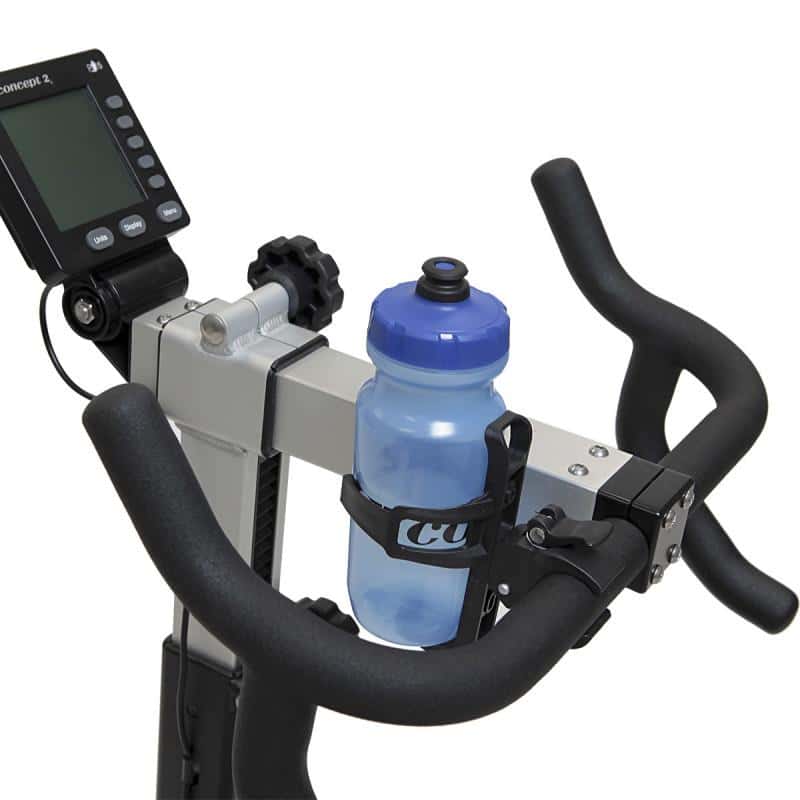
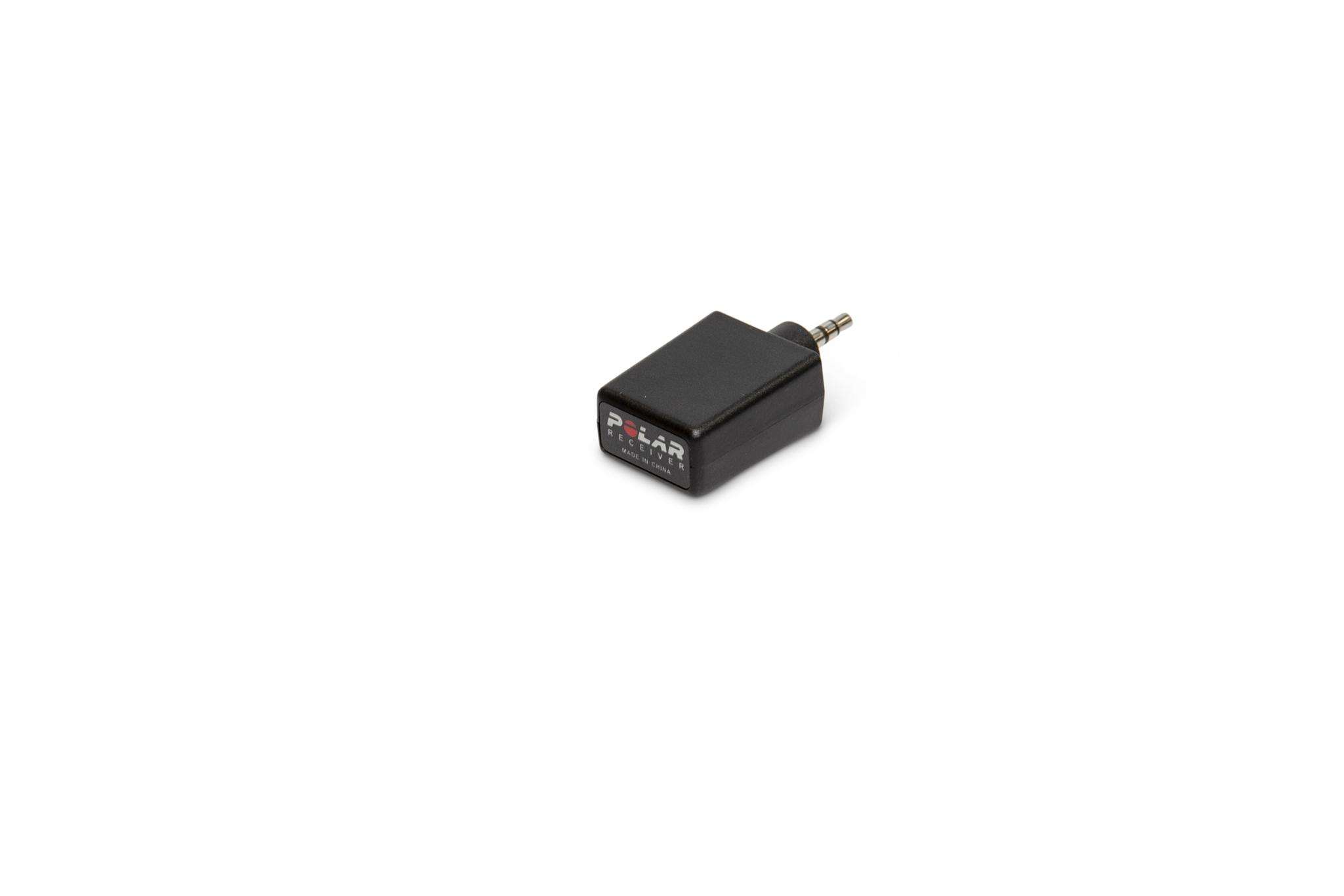
Heartrate Receiver Only—PM2, PM3, PM4
SKU: 2418
Details
arrow_forward

Heartrate Cable Only—PM2, PM3, PM4
SKU: 2420
Details
arrow_forward


Tall Legs Retrofit Kit—RowErg, Model C and D
SKU: 2396
Details
arrow_forward
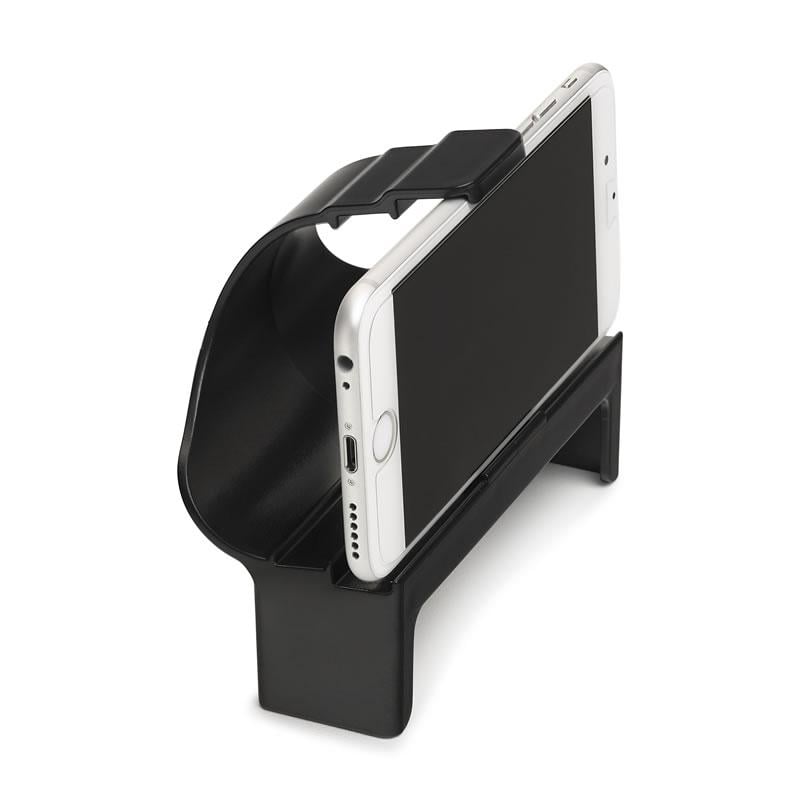
Smartphone Cradle for PM5, PM4 and PM3
SKU: 1098
Details
arrow_forward
Tall Legs Retrofit Kit—RowErg, Model C and D
SKU: 2396
Details
arrow_forward

RowErg Device Holder Retrofit Kit
SKU: 2390, 2389, 2392, 2391
Details
arrow_forward


Frequently Asked Questions
Answers regarding PM5 performance monitor calibration, chain lubrication, and Attivo commercial warranty.
Terms and Measurements
expand_more
Terms and Measurements
CLAM
Clip-on Load Adjusting Mechanism. The CLAM slides on and off the shaft and fits over the sleeve to quickly adjust the inboard of an oar or scull. Adding one CLAM increases the inboard by 1 cm, thereby decreasing the load you feel on the oar(s).
Oarlock Height
Vertical distance from the lowest point on the front edge of the seat at the front stop position to the midpoint of the oarlock shelf. This determines the level of your hands during the pull phase of the stroke, when the blade is just buried. If your hand level is too low, you will not have room to maneuver and feather your oar. If it is too high, you will feel uncomfortable as you pull through the water, and your oars may tend to wash out (come out of the water prematurely) during the stroke.
Inboard
The distance from the end of the handle to the blade-side face of the collar or CLAM The greater the inboard, the lighter the oar will feel in your hands, and the lighter your load will be when pulling through the water.
Load
Also called gearing. Just as the gearing on a bicycle determines the force felt at the pedal, the load defined by certain rigging measurements determines the force felt at the oar handle. For example, you can increase the load by doing any of the following: decrease the inboard; increase the outboard; increase your reach; use a longer oar without changing inboard or spread.
Outboard
The distance between the tip of the blade and the blade-side face of the collar or CLAM. The greater the outboard, the heavier the oar will feel and the greater the load will be.
Overlap
The amount by which the hands cross each other at the midpoint of the sculling stroke. The overlap is a function of the inboard and the spread and is generally described as half of the difference between the spread and twice the inboard. Increasing the inboard will increase the overlap, unless you increase the spread accordingly at the same time. Overlap is a matter of personal preference, but is generally recommended to keep it between 12 and 20 cm. In general, taller people row with more overlap and shorter people row with less.
Pin
The vertical axle extending up from the end of the rigger around which the oarlock rotates. The expression “through the pin” refers to the relative position of the pins and your seat at the beginning of the stroke. If the seat passes to the stern of the pins, you are said to be rowing “through the pin.”
Pitch
The angle of the blade away from perpendicular during the pull phase of the stroke. This is the net result of the pitch in the oar itself and the pitch in the oarlock and the pitch in the pin. Too much pitch makes it hard to bury the blade; too little pitch makes it too easy to pull too deep through the water.
Spread
The distance between the two pins on a sculling boat, or the distance between the pin and the center line of a sweep boat. Spread interacts with the inboard setting to determine the overlap of your hands when the oars are perpendicular to the boat. Also, the greater the spread, the smaller the arc that your oar blades sweep through the water.
General Concepts
expand_more
You want to adjust the rig of your boat so that:
- The height of your hands is comfortable. If your hands feel too high, lower the height of your oarlocks. In most boats, this can be done by removing the nut at the top of the pin, and transferring washers from below the oarlock to above the oarlock. Then be sure to replace the nut at the top of the pin. Alternatively, if you are not able to adjust the boat, you can raise yourself higher by using a seat pad of the desired thickness on top of the seat in your boat. If your hands feel too low, raise the height of your oarlocks by reversing the directions given above.
- (Sculling) You can row with your left hand over your right had without colliding at the middle of the stroke. There is differential in the height of your oarlocks so you can row with your left hand over your right hand, as is customary throughout the rowing community. If your hands tend to collide at the middle of the stroke, or if your boat is constantly down to the port side, you may need to increase the height differential between your right and left hands. This differential commonly ranges from 1.5 cm to 0.5 cm.
- (Sculling) You have a comfortable amount of handle overlap through the middle of the stroke. If it feels like you have too much overlap, decrease the inboard dimension or increase the spread. Remember that decreasing the inboard will also increase your load. Increasing the spread will slightly decrease the arc that your oars sweep through the water.
- You have an inch or two of clearance between your hands and your body at the finish of the stroke. If you do not have this clearance, try moving your foot stretchers further toward the bow of the boat. You can also decrease the inboard, but be aware that this will increase the load you feel on the oars. If you have too much clearance at the finish, move your feet closer to the stern of the boat.
- Your oars come through the water at a comfortable speed given the force that you are able to apply. If it feels uncomfortably heavy and slow pulling your oars through the water, shorten the length of your oar by adjusting at the grip, then move the collar toward the blade to maintain the inboard dimension. Other rigging adjustments that can be made to lighten the load are to increase the inboard dimension by moving the collar toward the blade. You may need to increase the spread in order to accommodate the change in inboard. If you feel you would like more load, lengthen the oar by adjusting at the grip, then move the collar toward the handle to maintain the inboard dimension. You can also increase the load by moving the collar toward the handle, decreasing the inboard dimension.
- The oars maintain a consistent and appropriate depth throughout the stroke and release the water well at the finish. If your oar washes out or seems to ride too far out of the water, you may need to lower the height of your oarlocks, or you may try subtracting a degree of pitch. Note: If the oar blades seem to dive too deep during the stroke: First, check to be sure that you are not pulling up on the oar. Pull evenly and horizontally. If it is not comfortable to pull at that level, adjust the height of your oarlocks to make it comfortable. If the oar continues to dig too deep, you may need to add a degree of pitch to your oarlocks.
- Your seat does not hit either end of the track during the stroke. If your seat hits the stern end of the track at the catch of the stroke, check to be sure that your shins are not moving past vertical and that you are not rushing too fast to the catch. If you still hit the end, you should move your foot stretchers closer to the bow of the boat. If your seat hits the bow end of the track at the finish of the stroke, you will need to move your feet further toward the stern of the boat.
Common Ranges for Rigging Settings
| Scull | Sweep | |
|---|---|---|
| Inboard Length | 85–90 cm | 113–117 cm |
| Spread | 156–162 cm | 83–86 cm |
| Oarlock Height | depends on boat height | |
| Pitch | 2–7 degrees | |
| Overlap | 12–20 cm | n/a |
100,000 Meter Row/Ski (for time)
expand_more
Setting Up Your Monitor: For PM5 monitors with the latest firmware, you are able to set a distance of 100,000 meters. For PM3 and PM4s, or if you are not able to update the firmware on your PM5, you can use Variable Intervals. On the Main Menu, choose Select Workout > New Workout > Intervals: Variable. Set a single distance interval of 100,000 meters, with a rest interval of 0:00.
We recommend you take regular rests throughout; the flywheel can stop spinning before the target is reached; however, your final time must include the periods when the wheel is not spinning.
24 Hour Row/Ski (for distance)
expand_more
Setting Up Your Monitor: Use Variable Intervals. On the Main Menu, choose Select Workout > New Workout > Intervals: Variable. Set a single time interval of 24 hours, with a rest interval of 0:00.
You must row or ski within each hour of the 24 hours in order for the attempt to qualify as a 24 hour row/ski. We recommend you take regular rests throughout; the flywheel can stop spinning.
Million Meter Row/Ski (for time)
expand_more
Setting Up Your Monitor: Use Variable Intervals. On the Main Menu, choose Select Workout > New Workout > Intervals: Variable. Set one distance interval of 900,000 meters and one distance interval of 100,000 meters with a rest interval of 0:00.
We recommend you take regular rests throughout the row/ski, and the flywheel can stop spinning before the target is reached; however, your final time must include the periods when the wheel is not spinning.
Longest Continual Row/Ski (for time)
expand_more
Setting Up Your Monitor: Use the Just Row/Just Ski function of your monitor. The PM3, PM4 and PM5 will count up to 50,000 before it flips back to 0.
You must row at least 50 minutes of every hour in order to achieve a “continuous” record row or ski. You are permitted to take up to 10 minutes of rest per hour. We recommend that you take regular rests throughout the workout, and the flywheel can stop spinning. Any rest time taken counts toward your elapsed time.
Turning Your Performance Monitor On/Off
expand_more
The Performance Monitor turns on automatically when you do any of the following:
- Pull the handle(s) on the RowErg or SkiErg
- Push a button on the PM
- Connect the PM to a computer
- Insert batteries
- Insert a battery pack (applies to PM4s only)
- Insert a LogCard into the PM (applies to PM3s and PM4s only)
The PM turns off automatically after a couple of minutes of inactivity. A spinning flywheel is considered activity, so the count starts once the flywheel stops.
Setting Date and Time
expand_more
When you first get your Performance Monitor (or if you work out at a gym), take the time to set the correct date and time on the monitor to ensure your results are associated with the proper date. It is not possible to edit the dates and times of past workouts, so it’s worth setting this information up correctly from the beginning.
- On the Main Menu, select More Options.
- Select Utilities.
- Select Date and Time.
- Set the correct date and time:
- Choose plus or minus to increase/decrease the values as needed.
- Choose the right and left arrows to navigate through the various digits.
- Select the checkmark icon to save the changes.
Setting Language
expand_more
- Access the Main Menu. If you don’t understand the language the monitor is currently displaying, press Menu | Back until the display stops changing. This means you have reached the Main Menu.
- On the Main Menu, select More Options (the fifth gray button on the right side of the monitor).
- Select Utilities (the second gray button on the right side of the monitor), and then select Language (the second gray button again). You should now see the language selections.
- On the right side of the monitor, press the button corresponding to the language you want to select.
Changing Contrast
expand_more
- On the Main Menu, select More Options.
- Select Utilities.
- Select LCD Contrast.
- Select Lighter or Darker, as desired.
- Press Menu or Menu | Back when you are satisfied with the contrast level.
Using the Monitor Display Options
expand_more
The Performance Monitor provides several display options. When you are rowing/skiing/riding, press Display or Change Display to cycle through the displays described below. You can also use the buttons on the right of the PM to access these displays:
- 1st button—All Data
- 2nd button—Force Curve
- 3rd button— PaceBoat/PaceSkier
- 4th button—Bar Chart
- 5th button—Large Print
On any display, the PM will also show your heart rate, if you are using compatible heart rate equipment.
All Data
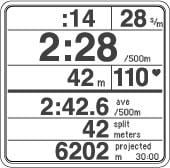
All Data provides the most comprehensive view of your workout. Depending on the type of workout you are doing (time, distance or interval), you can see the following information when looking at the All Data display:
- Time/distance elapsed/remaining
- Strokes per minute or revolutions per minute
- Workout intensity, displayed stroke-by-stroke and expressed as either pace per 500 meters or 100 meters for the BikeErg, Calories or watts (see Understanding Units for more information)
- Average workout intensity (in pace per 500 meters, Calories or watts) or total time/meters
- Split time, meters, pace, Calories or watts (see Understanding Splits for more information)
- Projected finish, as follows:
- For time workouts, this shows the number of meters you’ll complete by the end of the workout
- For distance workouts, this shows how much time it will take you to complete the workout; for Just Row/Ski/Ride workouts, projected finish is 30 minutes
- For interval workouts, this shows your projected finish distance or time for the interval
Monitor Display Options and Workout Data
Force Curve
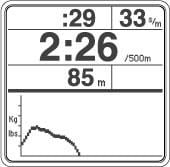
The Force Curve is an immediate graph of your power application during the stroke. When viewing the Force Curve display, the PM shows workout data on the top half of the screen and the force curve for each stroke on the bottom half.
For more information visit Working with the Force Curve and Using the Force Curve.
PaceBoat/PaceSkier/PaceRider
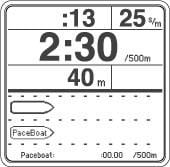
The PaceBoat/PaceSkier/PaceRider display allows you to row/ski/ride against a target pace, illustrated by either a pace boat or a pace skier. When viewing the PaceBoat/PaceSkier/PaceRider display, the PM shows workout data on the top half of the screen and the pace boat, pace skier or pace rider on the bottom half.
You can define a target pace when setting up a new workout, or you can use the ReRow/ReSki/ReRide function to set the target pace to a pace from a workout done in the past. If you don’t set a target pace, the pace boat/skier/rider matches your current workout pace.
For more information, visit Using the PaceBoat/PaceSkier.
Bar Chart
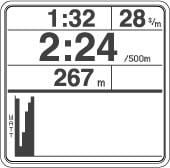
The Bar Chart display shows your power output in watts by painting a bar chart/graph for each stroke you take. (If you are using heart rate equipment, the Bar Chart displays heart rate intensity instead and paints a new bar every 10 seconds.) The higher the bar, the more power you have generated in that stroke, or the faster your heart is beating in that 10 second period.
When viewing the Bar Chart display, the PM shows workout data on the top half of the screen and the bar chart for each stroke on the bottom half.
Large Print
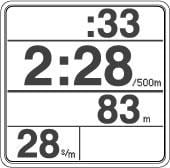
The Large Print display shows pertinent workout data in a large font for easier viewing.
Viewing Calories or Watts
expand_more
At any time during a workout or when viewing results, you can press Units or Change Units to change the units the monitor displays from pace to Calories or watts. For information on the formulas used to calculate watts, visit the Watts Calculator page.
Concept2 Coaching & Training Insights
Official guides covering rowing biomechanics, interval pacing, PM5 firmware updates and preventive maintenance.

2026-10-21
ErgData Feature: Workouts on the Real Time Loop
Since 2023 the Real Time Loop has been a way to connect with other Concept2 users from all over the world via the ErgData App . Whether it’s

2026-10-18
Concept2 RowErg, SkiErg, BikeErg & StrengthErg Are HSA/FSA Eligible
Concept2 is excited to announce that we have partnered with Truemed- making it simple and easy for you to use your HSA and FSA pretax funds

2026-10-16
Concept2 Retrofits and Accessories: 12 Ways to Update Your Erg
For 50 years Concept2 has engineered equipment that helps people reach their fitness goals, no matter how small or big they may be. We const

2026-10-16
Concept2 and NSCA Foundation Continue Equipment Grant Programs
Concept2 is excited to continue our partnership the National Strength and Conditioning Association Foundation for a second year to support t


Official Commercial Distributor in Vietnam
Build a World-Class Fitness Facility with Concept2
Attivo International partners with commercial gym operators, 5-star hotels, luxury resorts, sports performance centers, and international schools: providing equipment configuration, 2D/3D layout planning, certified CO/CQ documentation, and full factory warranty across Vietnam.
100% US Import
Full VAT Invoice
2-5 Yrs Warranty
Nationwide Setup
Request Consultation & B2B Quotation
Contact Attivo’s dedicated project team for tailored commercial packages, technical specifications, and official quotations.